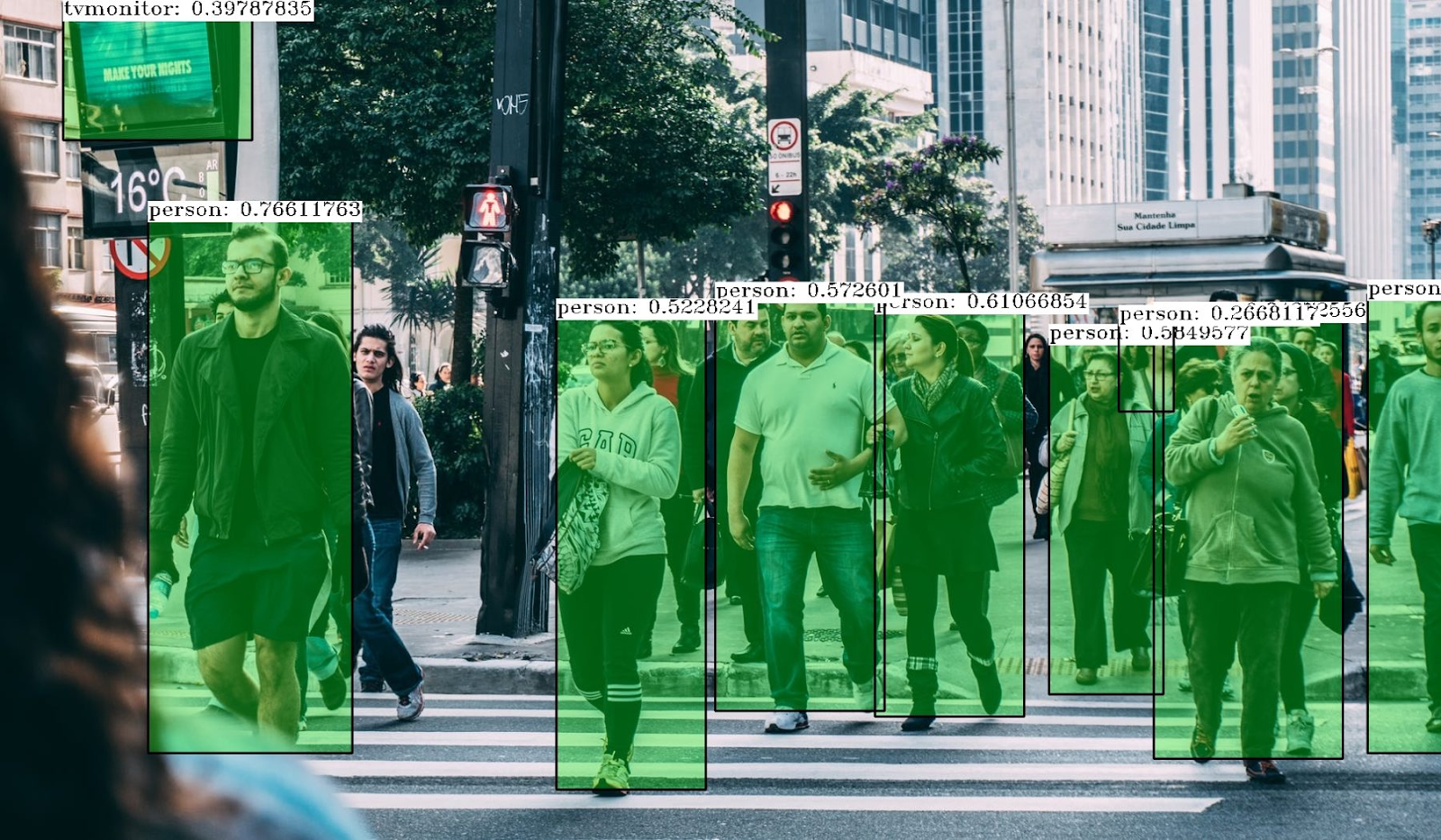


OpenCV is a powerful and versatile open-source library for Computer Vision tasks. It is supported in many languages, including Python, Java and C++. It is packed with more than 2500 algorithms to perform almost any Computer Vision task with just a single library. OpenCV is well known for its interactive windows and real-time processing capabilities.
In this quick tutorial, basic image processing and video processing with this library are discussed using Python codes. It should be noted that Jupyter Notebook environments such as Colab and JupyterLab clash with some interactive methods of OpenCV. However, these issues can be easily overcome with the help of some external libraries. Nevertheless, the codes discussed in this tutorial are carried out in a Spyder environment for the best performance.
Install the library in your local machine to have fun with images and videos. Install OpenCV Python from the PyPi package.
!pip install opencv-python
Read and Write an Image
Before starting the image processing, make sure that the working directory has an image. In OpenCV, an image can be read as a color or a grayscale image with corresponding flags. Read a coloured image with the imread method as shown below:
 import cv2
 # read an image in colour mode
 img = cv2.imread('daria.jpg', 1)
Argument 1 in the above imread method is a flag that directs that the image has to be read in colour. Flag 0 refers to grayscale image reading. The read image can be displayed in a window using imshow method.
 # display the image in a window
 cv2.imshow('Image Window', img)
 cv2.waitKey(0)
 cv2.destroyAllWindows()

OpenCV allows performing multiple inputs and outputs simultaneously through multiple windows. The waitKey method is used to inform OpenCV the time duration over which a window can be kept open. This method takes time as an argument in milliseconds. If 0 is provided as the argument, the user should close the window manually. It can be noted that the window has a name of its own. Therefore, when there comes a window into play, it must be named. Here, the window name is ‘Image Window’. destroyAllWindows method is used to force all the open windows to close at once.
 To read the above image as a grayscale image,
 # read an image in grayscale mode
 img = cv2.imread('daria.jpg', 0)

 # display the image
 cv2.imshow('Image Window', img)
 cv2.waitKey(0)
 cv2.destroyAllWindows()

Write an image to the local directory using the imwrite method. The method takes two arguments: name of image about to be written and the read/processed image.
 # write the image
 cv2.imwrite('daria_gray.jpg', img)
Read and Write a Video
A video is a collection of frames displaying at speed termed frames per second (fps). Each frame is an image. Excluding the specific properties such as frames per second and codec format, OpenCV processes videos the same way it processes images. OpenCV reads a video either from a file or directly from the device’s camera. This feature makes OpenCV the de facto choice for navigation systems such as robots and drones, embedded systems such as Raspberry Pi and Arduino, and autonomous vehicles.
 # read a video from file
 capture = cv2.VideoCapture('swan.mp4')

 # display the read video file
 while capture.isOpened():
     ret, frame = capture.read()
     if not ret:
         break
     cv2.imshow('Video Window’, frame)
     cv2.waitKey(25)
 capture.release()
 cv2.destroyAllWindows()
A frame in video output:

Video plays until there is a frame to read in the file. If we wish to read the device’s camera, the file name in the VideoCapture method should be replaced with number 0 (zero). In that case, the user needs to enable keyboard shortcut to stop capturing. The following example shows camera capturing along with keyboard shortcut of letter ‘q’ to interrupt capturing.
 # read real-time video from device’s camera
 capture = cv2.VideoCapture(0)

 # display the capturing
 while capture.isOpened():
     ret, frame = capture.read()
     cv2.imshow('Video Window’, frame)
     if cv2.waitKey(20) & 0xFF == ord(‘q’):
            break
 capture.release()
 cv2.destroyAllWindows()
Writing a video into a file needs some properties such as frame width, frame height and frame rate (fps). The following codes enable us to learn the input video properties.
 capture = cv2.VideoCapture('swan.mp4')
 # get frame properties
 print(capture.get(cv2.CAP_PROP_FRAME_WIDTH))
 print(capture.get(cv2.CAP_PROP_FRAME_HEIGHT))
 print(capture.get(cv2.CAP_PROP_FRAME_COUNT))
Output:

Write the video file to disk in any format you wish. It is required that the right fourcc codec format, frame size and frame rate should be provided as arguments to enable proper saving of the video file. Here, in the below example code, the file is saved in the working directory in the name of ‘output.mp4’.
 # read a video and write it to another file
 capture = cv2.VideoCapture('swan.mp4')
 # create a write file - arguments: file_name, fourcc_code, fps, size
 out = cv2.VideoWriter('output.mp4', cv2.VideoWriter_fourcc(*'XVID’'), 20.0, (640,360))

 while capture.isOpened():
     # read frame by frame
     ret, frame = capture.read()
     out.write(frame)
     if not ret:
         break
     cv2.imshow('Video Window', frame)
     cv2.waitKey(25)
 capture.release()
 out.release()
 cv2.destroyAllWindows()
Draw Shapes in an Image
In OpenCV, shapes such as a line, arrowed line, circle, rectangle, ellipse and polygons can be drawn over an image. Start and end coordinates, color of the shape, thickness of the border line are the common parameters in drawing a shape. It should be noted that OpenCV supports colours in BGR format, in contrast to most libraries such as Matplotlib and Seaborn where they support colours in RGB format.
 # read a coloured image
 img = cv2.imread('mason.jpg', 1)
 print(img.shape)
Output:

Draw a vertical green coloured line on the image
 # arguments: image, start, end, colour, thickness
 img = cv2.line(img, (50,100), (50,300), (0,255,0), 10)

 # display the image
 cv2.imshow('Image Window', img)
 cv2.waitKey(0)
 cv2.destroyAllWindows()

Draw a blue coloured circle and a red coloured rectangle on top of it.
 img = cv2.imread('mason.jpg', 1)

 # draw a green vertical line in it
 # arguments: image, start, end, colour, thickness
 img = cv2.line(img, (50,100), (50,300), (0,255,0), 5)

 # draw a blue circle on it
 # arguments: image, centre, radius, colour, thickness
 img = cv2.circle(img, (150,250), 60, (255,0,0), 5)

 # draw a red rectangle on it
 # arguments: image, diagonal_start, diagonal_end, colour, thickness
 img = cv2.rectangle(img, (300,140), (400,270), (0,0,255), 5)

 # display the image
 cv2.imshow('Image Window', img)
 cv2.waitKey(0)
 cv2.destroyAllWindows()

Write Text on an image
Text can be written on an image. Its location, size, font and colour can be customized as per the user’s wish.
 img = cv2.imread('senjuti.jpg')
 # display the  Original image without Text
 cv2.imshow('Original Image', img)

 # add text on the image
 # arguments: image, text, start_location, font, font_size, colour, thickness
 text_image = cv2.putText(img, 'I love Colours', (40,50), cv2.FONT_HERSHEY_SIMPLEX, 1, (0,0,255),2)
 # display the image with Text in a new Window
 cv2.imshow('Image with Text', text_image)
 cv2.waitKey(0)
 cv2.destroyAllWindows()

Running date-time on videos can be made in real-time using Python’s datetime library and OpenCV’s putText method. The below code example shows real-time date-time display on a video. It is especially useful in real-time camera capturing.
 # import the library
 from datetime import datetime
 text = str(datetime.now())

 # read a video from file
 capture = cv2.VideoCapture('drive_6.mp4')

 # display the read video file
 while capture.isOpened():
     ret, frame = capture.read()
     # add date-time to the frames
     frame = cv2.putText(frame, text, (30,40), cv2.FONT_HERSHEY_PLAIN, 1, (0,0,255), 2)
     if not ret:
         break
     cv2.imshow('Video Window', frame)
     cv2.waitKey(30)
 capture.release()
 cv2.destroyAllWindows()

Colour Analysis on an Image
We discussed that colour images in OpenCV are read and processed in BGR colour format. An image can be split into three separate images for each of the Blue, Green and Red channels. On the other hand, the split image can be back to original colour or different channel combinations as shown in the example below.
 # read an image
 img = cv2.imread('daria.jpg', 1)

 # split the colour image and merge back
 B, G, R = cv2.split(img)
 img_BGR = cv2.merge((B,G,R))
 img_RGB = cv2.merge((R,G,B))
 img_BRG = cv2.merge((B,R,G))

 # display the merged images
 cv2.imshow('Image in BGR', img_BGR)
 cv2.imshow('Image in RGB', img_RGB)
 cv2.imshow('Image in BRG', img_BRG)
 cv2.waitKey(0)
 cv2.destroyAllWindows()

Alterations in Images
A portion of an image can be extracted or replaced with a similar-sized image patch or any simple math alterations similar to that. Here, we perform some replacements in an image with its own sub-portion in an example.
 # coffee cup alteration
 img = cv2.imread('brooke.jpg')

 # extract a portion of the image
 coffee = img[150:235,200:300]
 alter = img.copy()

 # perform multiple alterations
 alter[0:85,0:100] = coffee
 alter[85:170,0:100] = coffee
 alter[170:255,0:100] = coffee
 alter[20:105,220:320] = coffee

 # display the Original image
 cv2.imshow('Original Image', img)
 # display the altered image
 cv2.imshow('Altered Image', alter)
 cv2.waitKey(0)
 cv2.destroyAllWindows()

Merging Multiple Images
Two or more images can be merged either by simple addition or by weighted addition. However, adding together images should be the same size and have the same number of channels.
 # read two images and resize them
 img_1 = cv2.imread('xuan.jpg', 1)
 img_1 = cv2.resize(img_1, (320,225))
 img_2 = cv2.imread('daria.jpg',1)
 img_2 = cv2.resize(img_2, (320,225))

 # display original images
 cv2.imshow('Image 1', img_1)
 cv2.imshow('Image 2', img_2)
 cv2.waitKey(0)
 cv2.destroyAllWindows()

 # simple addition
 simple = cv2.add(img_1, img_2)
 cv2.imshow('Simple Addition', simple)
 cv2.waitKey(0)
 cv2.destroyAllWindows()

 # weighted addition
 weight_70 = cv2.addWeighted(img_1, 0.7, img_2, 0.3, 0)
 weight_30 = cv2.addWeighted(img_1, 0.3, img_2, 0.7, 0)
 cv2.imshow('70-30 Addition', weight_70)
 cv2.imshow('30-70 Addition', weight_30)
 cv2.waitKey(0)
 cv2.destroyAllWindows()

Wrapping Up
In this tutorial, we discussed the OpenCV library and its fundamental implementation in Python.
We discussed loading an image or a video file and saving them to the disk. Further, we drew some standard shapes such as line, circle and rectangle over an image. We looked at writing texts, including real-time running texts of date and time. We learned how OpenCV handles colour channels (B,G,R) and split and merged in different colour combinations. Finally, we discussed alterations in an image and merging different images to create a new interactive image.
Note: Images and videos used are open source images that need no license to reuse.